
Schedule backups for your client websites.
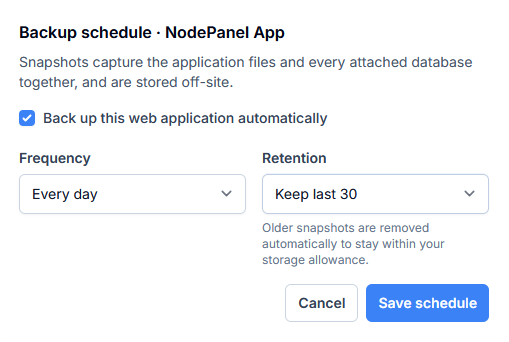
Choose what to back up, set a schedule and decide how many copies to keep. Review the result of each run so you know which completed backup is available to restore.
Start your 7-day trialCard required. Nothing charged until the trial ends.

In practice
Know which backup you can restore.
A schedule is only the start. Your recovery plan should include checking completed backups and testing that the files and database you need can be restored.
-
Choose the backup scope
Back up website files or a database, or use an application snapshot for the supported application data. Choose the scope that matches what you would need to recover.
-
Set retention and review each run
Configure a recurring schedule and the number of completed copies to retain. Review backup status and investigate failures instead of assuming every scheduled job succeeded.
-
Restore a completed backup
Choose an available completed backup and start a restore through the agent. Restoring replaces data within the selected scope, so confirm the target and keep a current copy before proceeding.
Try NodePanel
Start with one website.
Connect a supported server and try the workflow on a test site.
Card required. Nothing charged until the trial ends.